

Description
Download Auto Clicker – Free, Secure Automatic Clicking Tool for Windows & macOS
Overview – What Is Auto Clicker and Who Needs It?
Auto Clicker by MurGaa is a lightweight, trial‑ware application that automates mouse and keyboard clicks on both Windows 10/11 and macOS 12+. Designed with gamers, testers, and productivity enthusiasts in mind, the software lets you define precise click intervals, click counts, and hot‑key triggers without ever touching a physical button. The free trial gives you a taste of the full feature set for a limited period, after which a one‑time purchase unlocks unlimited use.
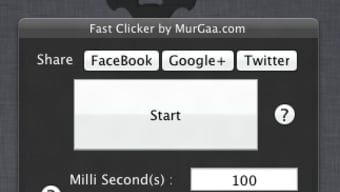
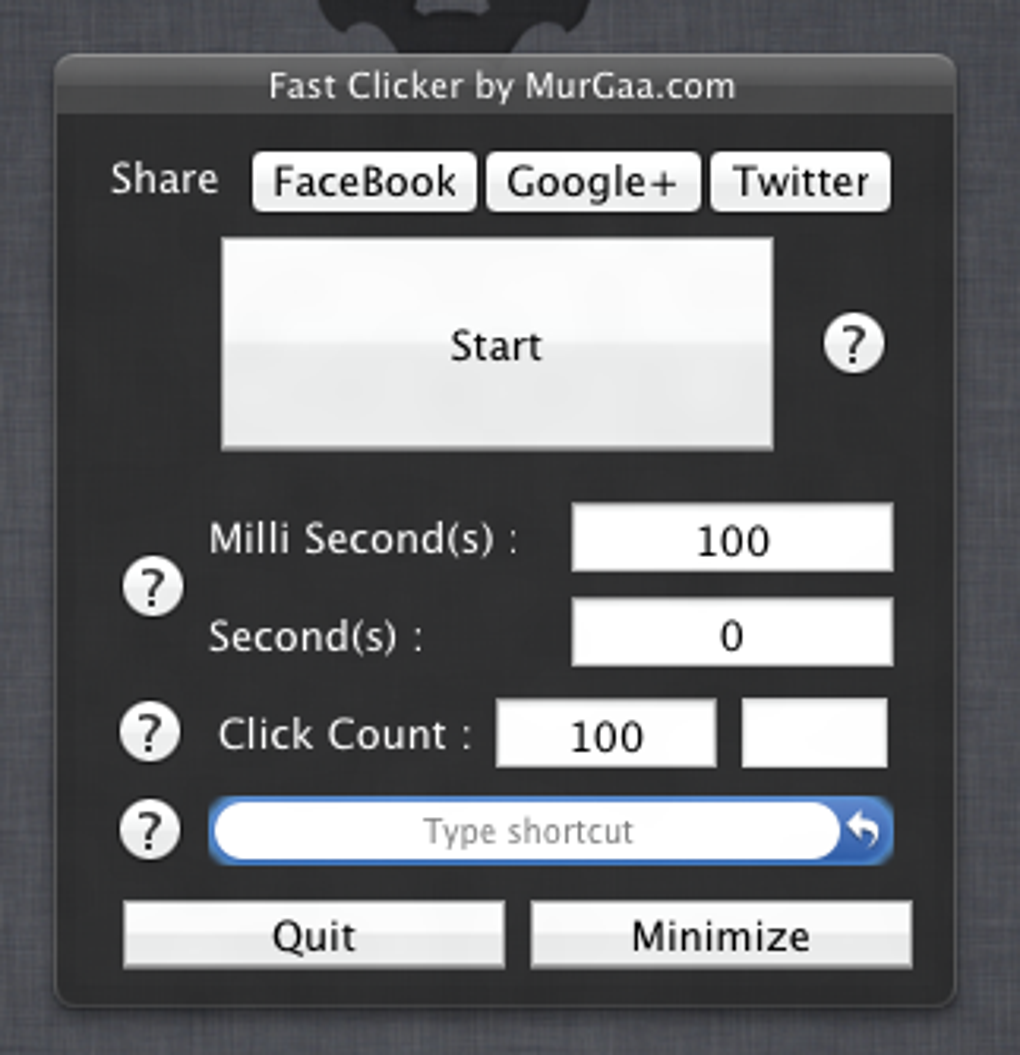
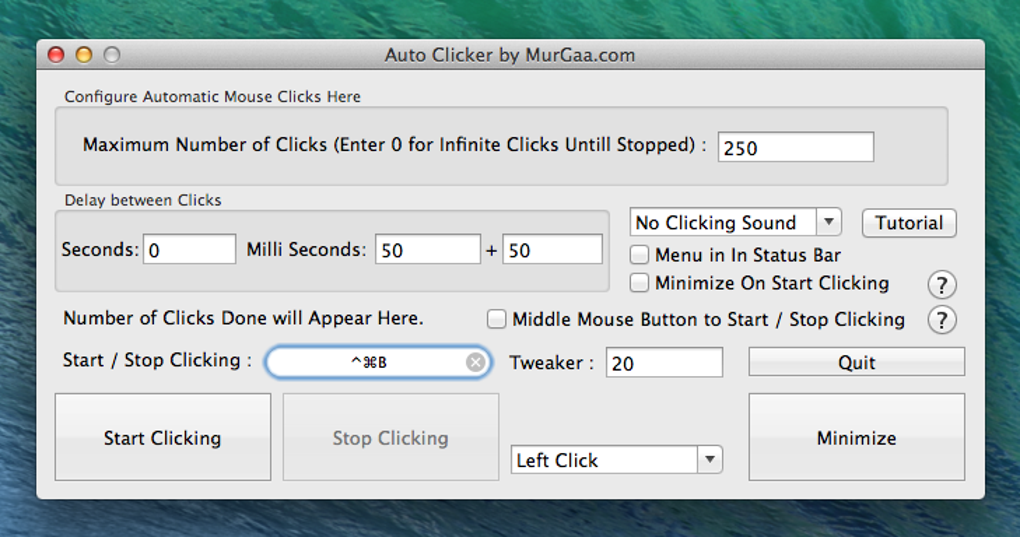
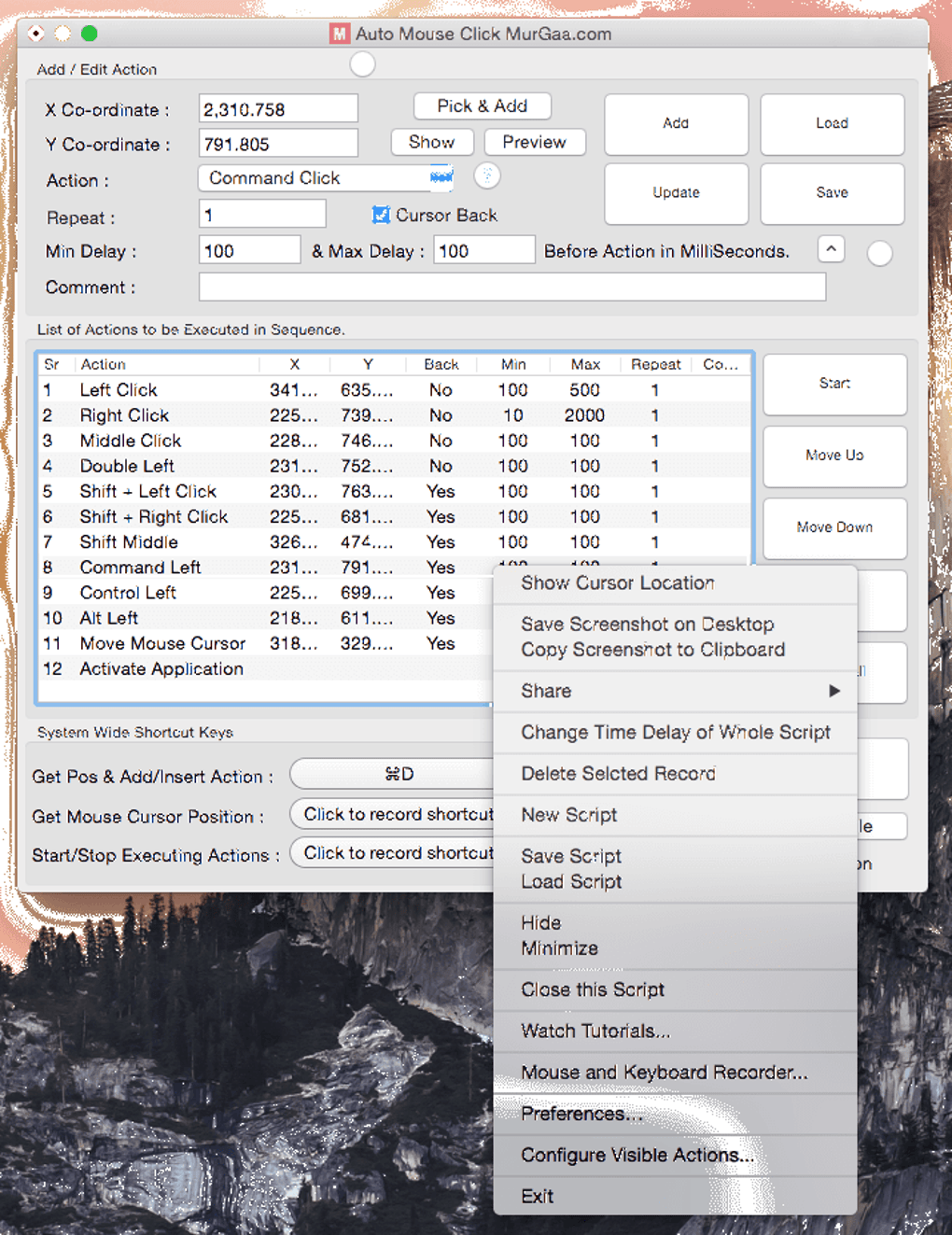
What sets this Auto Clicker apart from the dozens of alternatives—such as GS Auto Clicker, iMouseTrick, or OP Auto Clicker—is its dual‑panel interface that separates mouse actions (Clicker 1) from combined mouse‑and‑keyboard actions (Clicker 2). This design lets you create complex automation sequences, like holding down a key while repeatedly clicking a spot on the screen. The tool also includes sound feedback options, customizable hot‑key assignments, and the ability to run in the background silently, making it suitable for both casual gaming sessions and rigorous software testing.
Security concerns often arise because the program requires permission to monitor keystrokes and mouse events across the system. MurGaa addresses this by prompting macOS users to grant access through the Security & Privacy settings and by providing a clear privacy policy outlining data handling. While the software is not a virus, users should always download it from the official website and verify the digital signature to keep their systems safe.
In short, Auto Clicker offers a robust, highly customizable solution for anyone who needs repetitive clicking—whether you’re grinding in an MMO, automating repetitive data entry, or testing UI elements. Its free trial lets you explore every function before committing, and its cross‑platform support ensures you can use the same tool on both Windows PCs and Apple Macs.
Features & Installation – Getting Started with Auto Clicker
Key Features
- Dual click panels (mouse‑only and mouse‑plus‑keyboard) for complex automation.
- Unlimited click count or fixed number of clicks (including infinite mode).
- Delay settings in seconds and milliseconds for precise timing.
- Customizable hot‑keys: spacebar, volume buttons, scroll wheel, or any keyboard key.
- Sound feedback library (Basso, funk, morse, ping, etc.) with mute option.
- Background operation with “Minimize on Start Clicking” to keep UI out of the way.
- Low CPU usage – runs smoothly on older hardware.
- Free trial with full feature access; one‑time purchase unlocks unlimited use.
Step‑by‑Step Installation Guide
Installing Auto Clicker is straightforward on both Windows and macOS. Follow these steps to get the software up and running quickly:
- Download the installer from the official MurGaa website. Choose the Windows 64‑bit or macOS 64‑bit version based on your operating system.
- Run the installer. On Windows, double‑click the
.exefile and follow the wizard prompts. On macOS, open the.dmg, drag the Auto Clicker icon to your Applications folder, and confirm any security warnings. - Grant system permissions. macOS will ask you to allow the app to monitor keystrokes. Open System Preferences → Security & Privacy → Privacy → Accessibility and check the box next to “Auto Clicker by MurGaa.com.” You may need to click the lock icon and enter your admin password.
- Launch the program. After installation, open Auto Clicker. The first‑time launch may present a brief tutorial window; you can close it or explore the “Tutorial” button for detailed guidance.
- Configure your first click profile. In the “Clicker 1” panel, select the mouse button (left, right, middle, double) and set the desired number of clicks or choose “0” for infinite clicks. Adjust the delay between clicks using the millisecond slider.
- Assign a hot‑key. Click the dropdown under “Hotkey” and press the key you want to use to start/stop the clicking process. Common choices are the spacebar or a function key (F8‑F12).
- Start clicking. Press the assigned hot‑key, and the auto clicker will begin. To stop, press the hot‑key again or click the “Stop” button in the UI.
After the trial period expires, a purchase dialog will appear. The one‑time price is modest, and it removes all time limits, allowing you to continue using the full feature set without interruptions. Updates are delivered automatically via the built‑in updater, ensuring you always have the latest compatibility fixes and feature enhancements.
Compatibility, Pros & Cons – Is Auto Clicker Right for You?
Supported Platforms
Auto Clicker runs on 64‑bit Windows (10, 11) and macOS (12 Monterey and newer). The installer automatically detects your OS version and installs the appropriate binaries. While the software does not have native Linux support, you can run it under Wine on many distributions, though functionality may be limited.
System requirements are minimal: a 1 GHz processor, 256 MB RAM, and at least 20 MB of free disk space. Because the application is designed to be lightweight, it consumes less than 5 % CPU during active clicking, making it safe for gaming rigs, older laptops, and even virtual machines.
Pros
- Highly customizable: Dual panels, infinite clicks, millisecond precision.
- Cross‑platform: Works on both Windows and macOS with a unified interface.
- Low resource usage: Runs smoothly on low‑end hardware.
- Free trial: Full feature access before purchase.
- Sound feedback: Optional auditory cues help you monitor activity.
Cons
- Steep learning curve: Many options can overwhelm beginners.
- Permission requirements: macOS users must grant accessibility access.
- Trial limitation: After the trial, you must purchase to continue.
- No native Linux version: Requires workarounds for Linux users.
- Potential security concerns: Requires keystroke monitoring, which some users may find uncomfortable.
Frequently Asked Questions about Auto Clicker
Is Auto Clicker safe to use on my computer?
Yes, when downloaded from the official MurGaa website the software is free of malware. However, it does require permission to monitor keystrokes and mouse events, which is necessary for its functionality. Always verify the digital signature and read the privacy policy before granting access.
Can I use Auto Clicker on a Mac with the latest macOS?
Absolutely. Auto Clicker supports macOS 12 Monterey and newer. After installation you’ll need to allow the app in System Preferences → Security & Privacy → Accessibility before it can simulate clicks.
What is the difference between Clicker 1 and Clicker 2?
Clicker 1 is dedicated to mouse actions only (left, right, middle, double clicks). Clicker 2 extends this by allowing you to combine mouse clicks with keyboard key presses, enabling more complex automation scripts.
How do I stop an infinite click loop?
Press the hot‑key you assigned to start the clicking process, or click the “Stop” button in the UI. If the UI is hidden, use the global hot‑key (default: Esc) to abort the operation.
Is there a way to export or save my click profiles?
Yes, the application includes a “Save Profile” button that creates a .json file with all your settings. You can import this file on another machine to replicate the same configuration.
Conclusion – Should You Download Auto Clicker?
Auto Clicker by MurGaa delivers a powerful, flexible automation engine that caters to gamers, QA testers, and anyone who needs repetitive clicking without the strain of manual input. Its dual‑panel layout, millisecond precision, and broad hot‑key support make it one of the most feature‑rich free clickers on the market. While the initial learning curve can be steep and macOS users must grant accessibility permissions, these are minor trade‑offs for the level of control you gain.
If you’re looking for a secure, cross‑platform solution that lets you fine‑tune click intervals, assign custom sounds, and run in the background, Auto Clicker is a solid investment. Start with the free trial to explore every option, then decide if the one‑time purchase price fits your budget. With regular updates and an active support community, you’ll have the tools you need to automate tedious tasks for years to come.
Ready to boost your productivity? Download Auto Clicker now and experience the convenience of effortless clicking.
Guides & Tutorials for Auto Clicker
How to install Auto Clicker
- Click the Preview / Download button above.
- Once redirected, accept the terms and click Install.
- Wait for the Auto Clicker download to finish on your device.
How to use Auto Clicker
This software is primarily used for its core features described above. Open the app after installation to explore its capabilities.
User Reviews for Auto Clicker 0
No reviews found





.webp)